Voice notes have become an essential part of my daily routine, helping me capture thoughts and ideas while staying active. Today, I want to share my experience using the Whisper application on Mac for transcribing these voice notes, and how it compares to Apple’s built-in transcription.
My Voice Notes Setup
My preferred method is simple: I take my phone on walks and use the Voice Memos app to record my thoughts. While I initially tried using AirPods, the voice quality was consistently muddled, so I switched to recording directly through my phone’s microphone. This setup has proven much more reliable.
Though you can record using a MacBook’s microphone, I prefer the walking-and-talking approach. It combines exercise with productivity, and there’s something therapeutic about voicing my thoughts while enjoying nature. The stream-of-consciousness style works well for me – no need for perfect organization at this stage.
The Transcription Process
Since I use Apple’s Voice Memos app, the recordings automatically sync to my Mac. From there, the process involves a few steps:
- Drag and drop the voice notes from the Mac app to a folder
- Convert the M4A files to MP3 (Whisper only accepts MP3)
- Run the transcription using Insanely Fast Whisper
- Extract just the text from the resulting JSON file
To simplify this process, I created an alias that handles everything in one command:
alias ifwa='for f in *.m4a; do ffmpeg -i "$f" "${f%.m4a}.mp3"; done && for f in *.mp3; do insanely-fast-whisper --device-id mps --language en --file-name "$f" --transcript-path "${f%.mp3}.json"; done && for f in *.json; do jq -r ".text" "$f" > "${f%.json}.txt"; done && rm *.m4a *.mp3 *.json'Breaking Down the Script
Let’s break down what this alias does step by step:
-
Convert M4A to MP3:
for f in *.m4a; do ffmpeg -i "$f" "${f%.m4a}.mp3"; doneThis loop takes all
.m4afiles in the folder and usesffmpegto convert them to.mp3. The${f%.m4a}.mp3syntax strips the.m4aextension and replaces it with.mp3. -
Run Whisper Transcription:
for f in *.mp3; do insanely-fast-whisper --device-id mps --language en --file-name "$f" --transcript-path "${f%.mp3}.json"; doneThis loop processes each
.mp3file through theinsanely-fast-whispertool. It specifies the device ID (mpsfor Apple Silicon), sets the language to English, and outputs the transcription in a.jsonfile. -
Extract the Transcribed Text:
for f in *.json; do jq -r ".text" "$f" > "${f%.json}.txt"; doneHere,
jqextracts the transcribed text from each.jsonfile and saves it into a.txtfile. The-rflag ensures the text is outputted as raw strings without quotes. -
Clean Up Temporary Files:
rm *.m4a *.mp3 *.jsonFinally, it deletes all the original
.m4a, intermediate.mp3, and.jsonfiles, leaving only the final.txttranscription files.
Beyond Just Blogging
This workflow isn’t limited to blog writing. I use it for work, personal reflection, and mental clarity. There’s something uniquely satisfying about talking through your thoughts as if you’re having a conversation with someone.
Post-Processing
Once I have the transcription, I often feed it into an LLM like Claude or GPT to help structure the narrative. This helps transform the stream-of-consciousness recording into more organized, readable content – just like this blog post!
Here’s a sample prompt:
<Role>
Act as a professional ghostwriter & proofreader.

<Task>
- to rewrite my transcription in a much more clearly formatted and easy to digest format, but still in a narrative format instead of summary.
- focus on cleaning up the rambling, but keep as much information as possible.
- don't miss any details.
- keep the casual tone
- only write the output and nothing else
- be polite even if the transcription is angry or impolite

<Transcription>
I hope this workflow helps you find new ways to capture and process your thoughts. Sometimes the best ideas come when we’re moving and speaking freely, rather than sitting at a desk.
Comparing Whisper and Apple Voice Notes Transcription
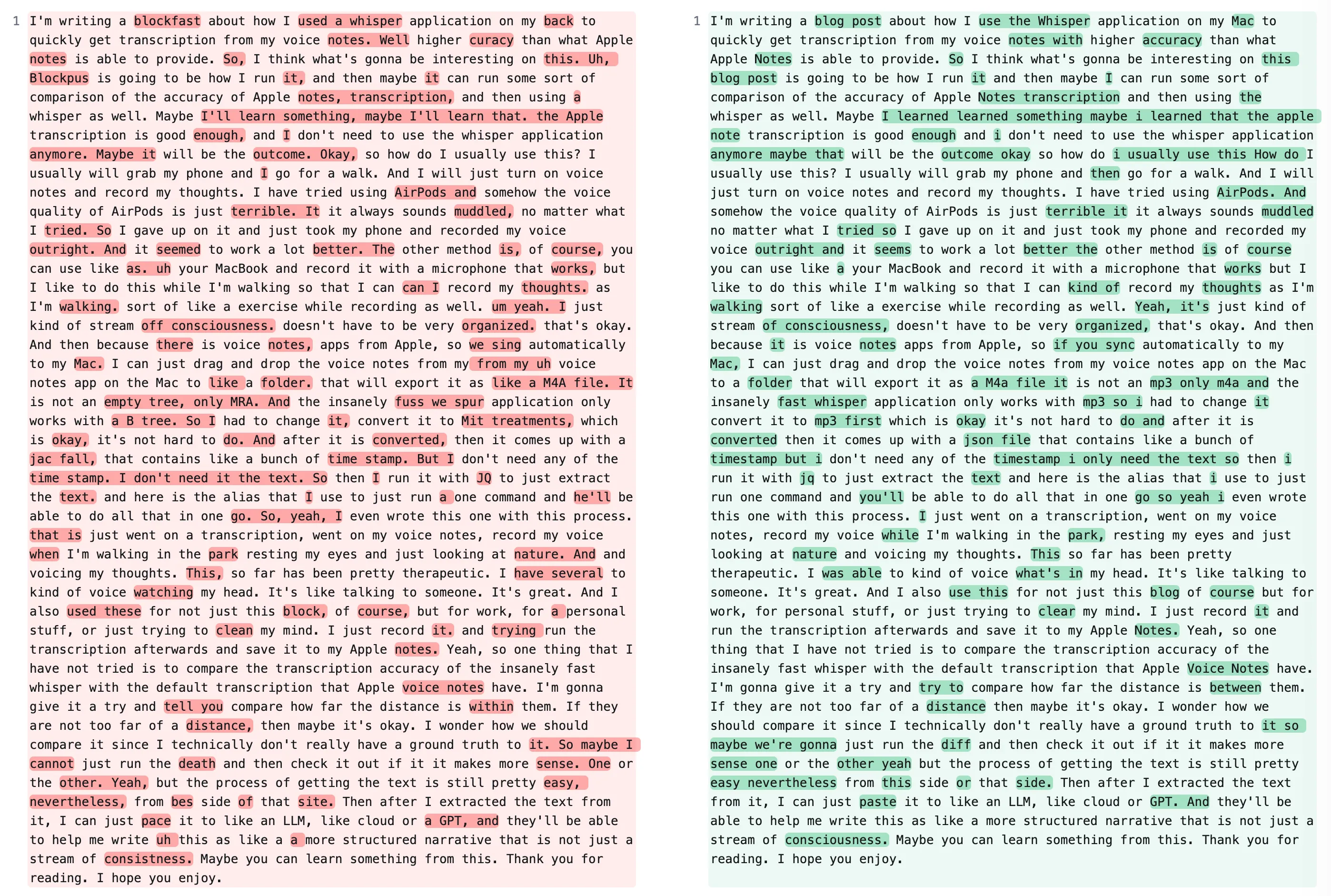
To understand the differences between Insanely Fast Whisper and Apple’s built-in transcription, I ran the same voice note through both systems and compared the results.
The left is Apple VoiceNotes transcription and the right is insanely-fast-whisper.
Open image in new tab to see it in full size
Observations:
- Accuracy: Whisper clearly outperforms Apple Voice Notes in transcription accuracy. It captures complex sentences and maintains coherence, whereas Apple’s transcription introduces unusual words like “blockfast” and “Blockpus,” and struggles with punctuation and sentence structure.
- Consistency: Whisper handles repeated words and filler phrases more gracefully, while Apple’s transcription often misinterprets or omits them, resulting in fragmented sentences.
- Usability: While both methods sync well with my workflow, the cleaner and more accurate output from Whisper reduces the need for extensive post-editing, making it a more efficient tool overall.